For this basic tutorial, I want to give a tutorial of making selection tools screenshoot on my last post. here is the screenshoot:

here we go.
first of all, I captured the toolbox with printscreen button on my keyboard. I paste it on photoshop [in the new blank paper], then I crop it with Crop tool [find it on toolbox].
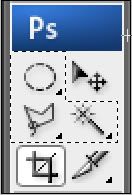
now, I want to highlight the selection tools just like above. here are the step:
1. simply select it with rentagular marquee tool. You can add the selection twice or more. just press the shift button when selecting again.
1. simply select it with rentagular marquee tool. You can add the selection twice or more. just press the shift button when selecting again.
2. create a new layer [on the right bottom of your screen], then select the paint bucket tool  .
.
.
fill the color inside the selection. you can simply pick the color on the right side of your screen. here is the result:
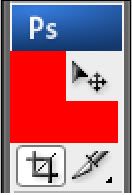
3. I will make it transparent. you can adjust the opacity by
dragging the opacity meter on the right bottom of your screen [on a box
where you create your new layer].
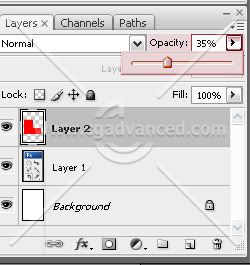
4. just save it as .jpeg format. just go to file - save as.. and then change the Format to JPEG.
simple isn't it? hope it will useful =)

No comments:
Post a Comment